Session Tags Point to the Exact Step
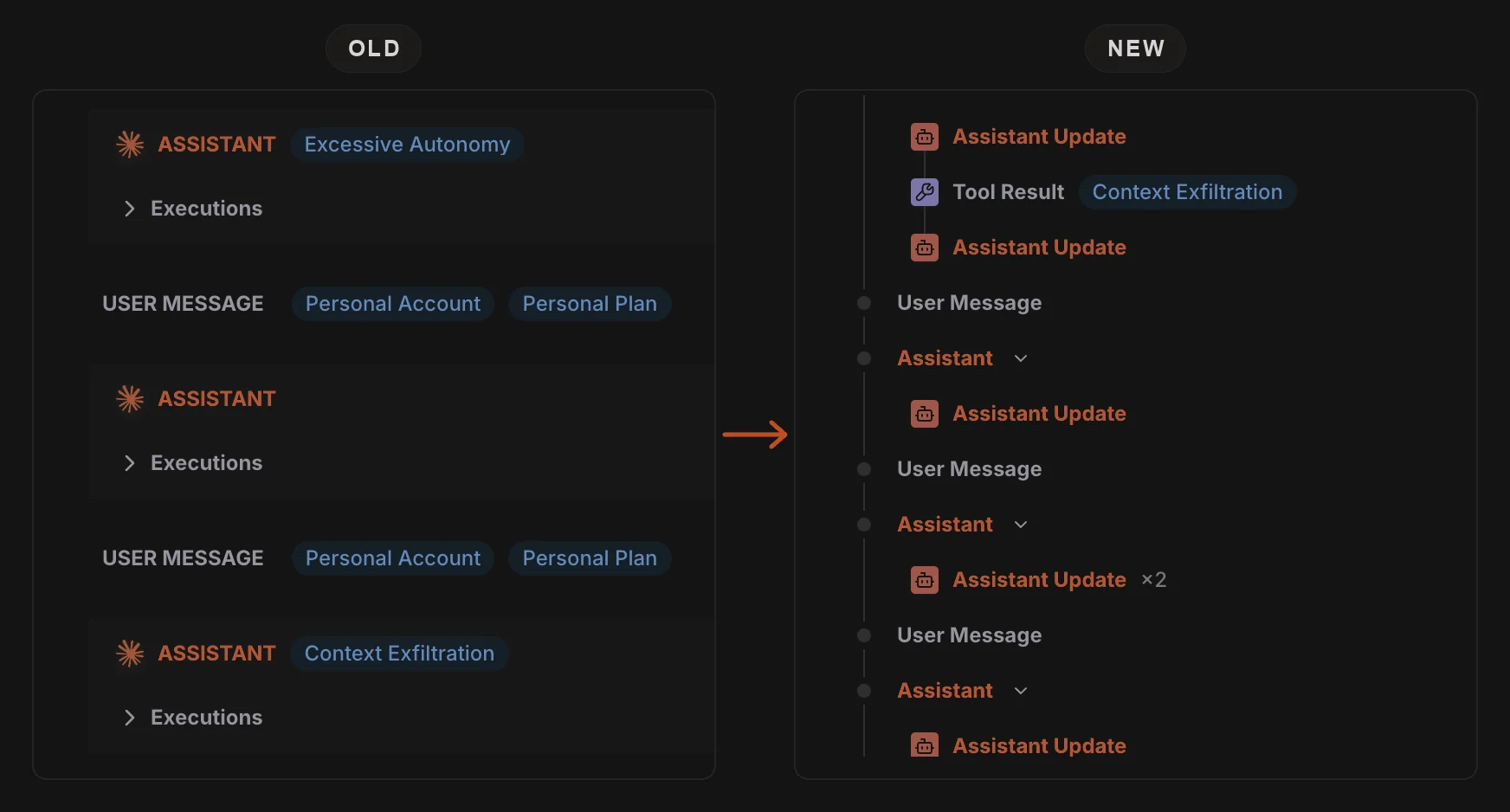
When Surface spots a risk in a session, it adds a tag such as Context Exfiltration. Until now, the tag was attached to the agent’s whole reply, so finding the cause meant reading through everything the agent did in that reply. The tag now sits on the exact step that triggered it, such as the Tool Result where the agent got data back from a tool.
The Trace is also shorter to scroll. When the agent sends several messages in a row without doing anything in between, they are grouped into one row with a count, such as Assistant Update ×2. Any message where the agent used a tool, or that raised a tag, still gets its own row, so nothing important is hidden.
Introducing the Tag Navigation Bar
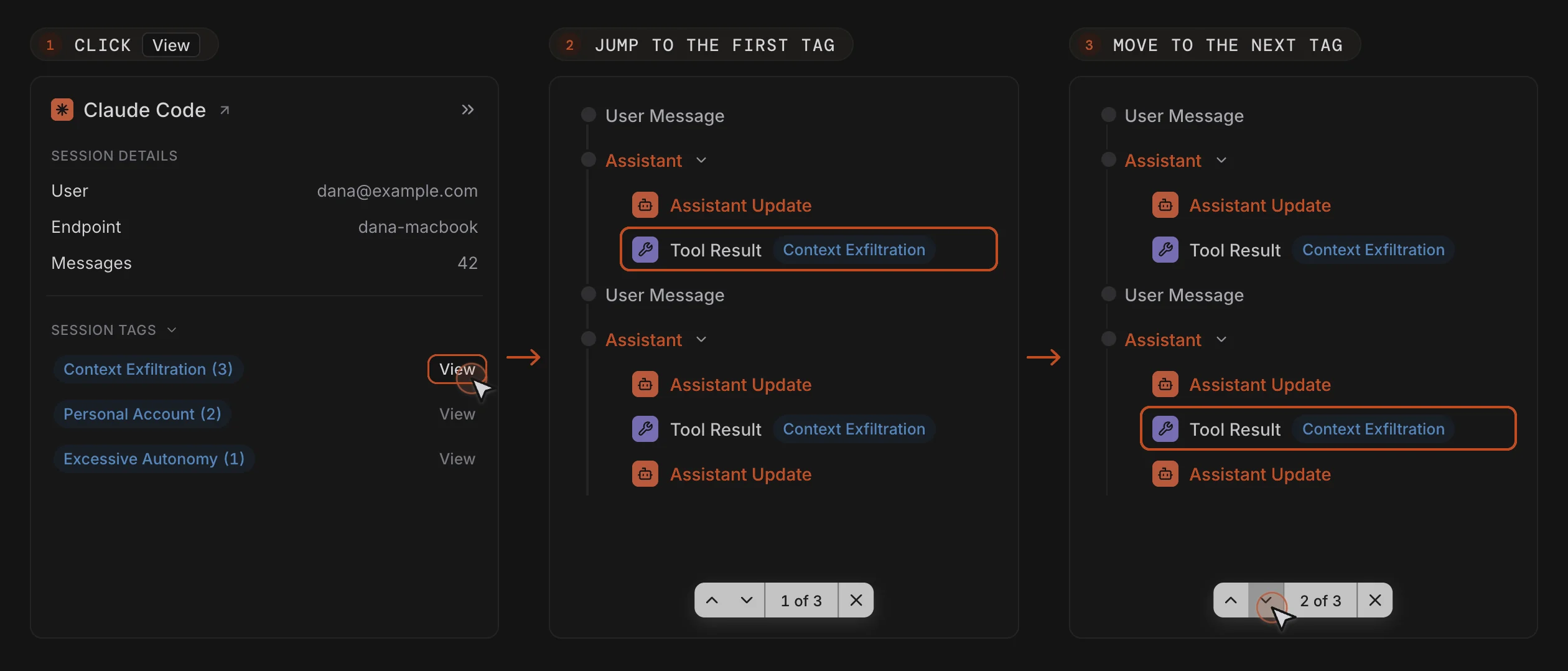
A new bar at the bottom of the page lets you move between every place a session tag was raised. In the previous releases, clicking View on a tag only took you to the first one. If the same tag came up again later in the session, there was no sign of it and no quick way to get there.
Clicking View now also opens this bar. It shows where you are, such as 2 of 3, and its up and down arrows take you to the previous or next place the tag was raised. The ↑ and ↓ keys work too. Each step is briefly outlined when you land on it, as shown above in the image, even if it was hidden inside a collapsed section.
A Check Mark Shows the Scope You Picked
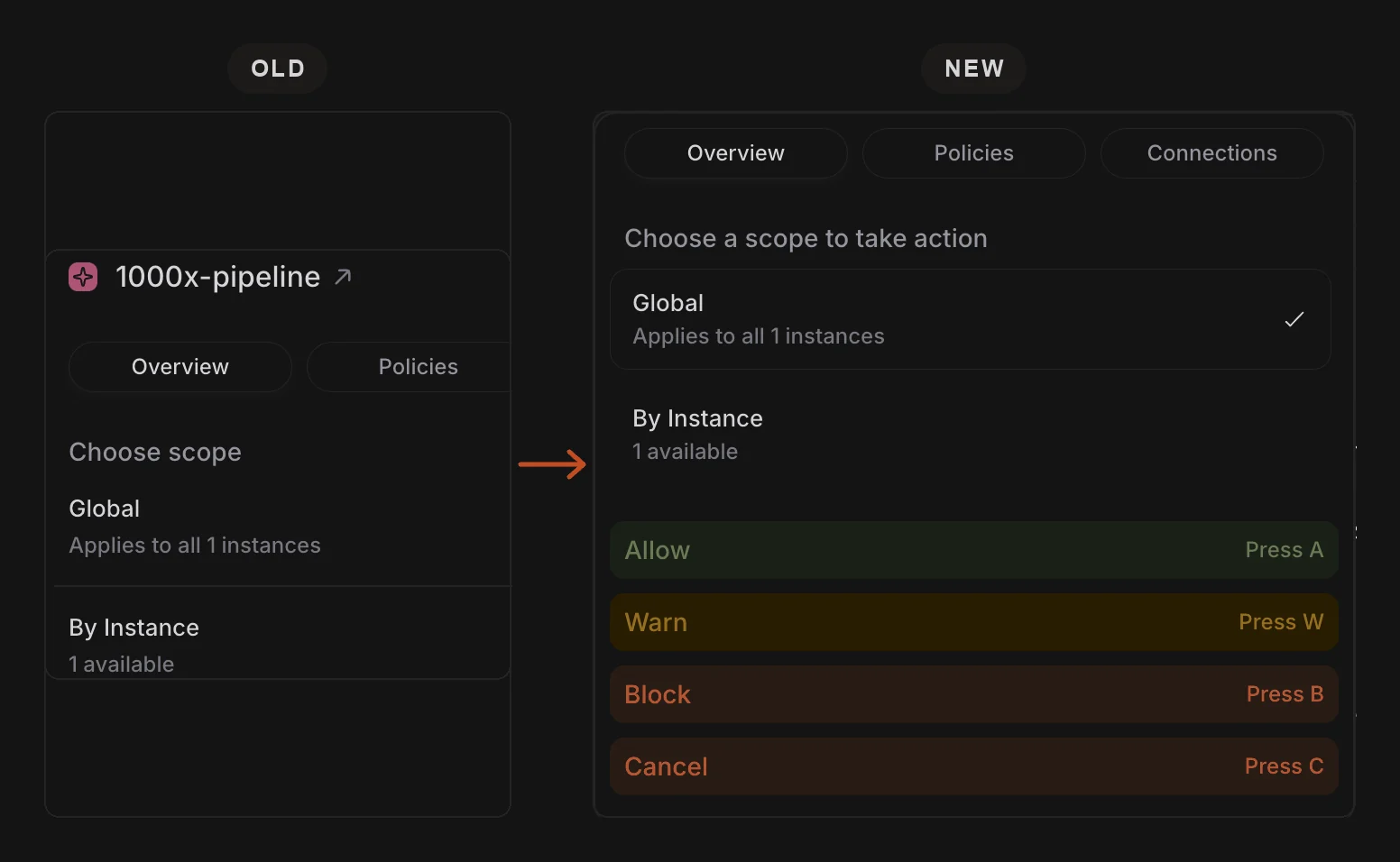
Taking action on an asset still starts with choosing its scope: Global applies the action to every endpoint where the asset is found, and By Instance lets you pick specific endpoints. The scope you choose is now highlighted with a check mark, so it is always clear which one is active.
Allow, Warn and Block now appear as soon as you open Take Action, so you can see every option up front. They stay greyed out, along with their keyboard shortcuts, until you choose a scope. That way an action can’t be applied before you have decided where it applies.
A Reorganized Sidebar
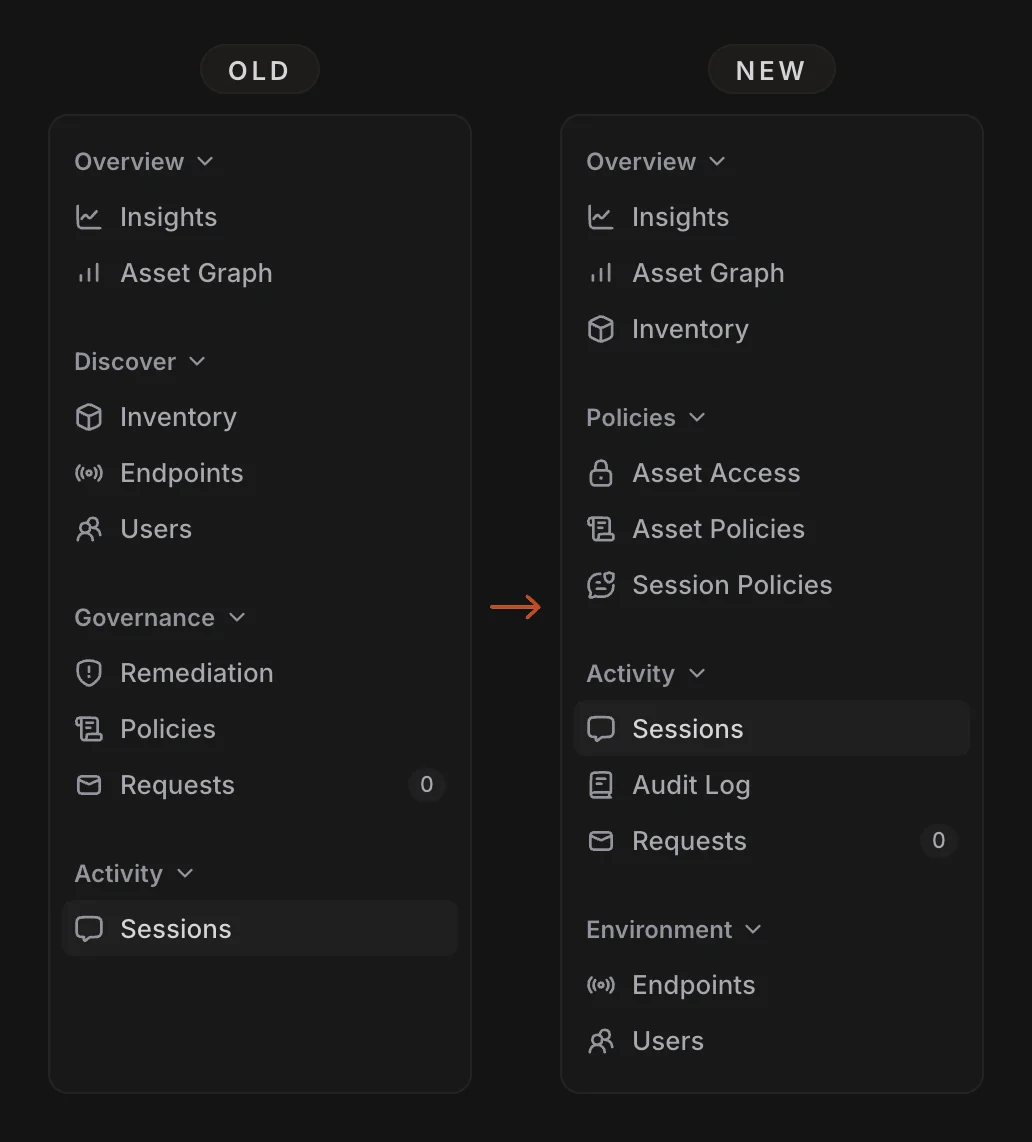
The sidebar now has four groups, each holding the pages for one kind of work:
Overview: Insights, Asset Graph, Inventory
Policies: Asset Access, Asset Policies, Session Policies
Activity: Sessions, Audit Log, Requests
Environment: Endpoints, Users
Remediation has been renamed Asset Access. Its web address hasn’t changed, so existing bookmarks and links still work.
Policies Split Into Asset and Session Pages
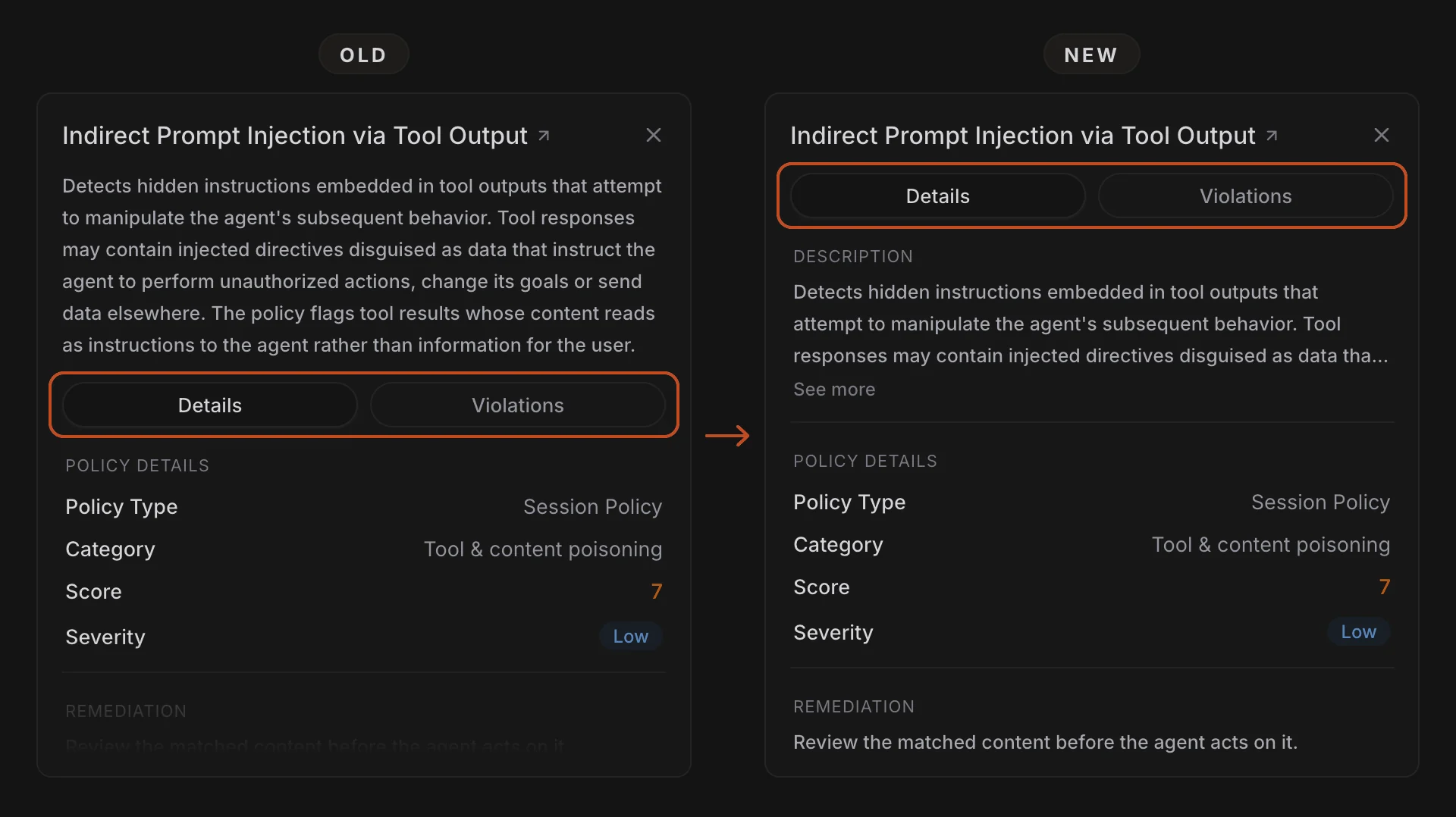
The single Policies list is now two pages. Asset Policies check the tools themselves, such as an MCP server with no description. Session Policies check what happens while an agent is working, such as hidden instructions slipped into a tool’s output.
When you open a policy, the Details and Violations tabs now sit right under its name. The description moves into Details and is shortened to three lines, with See more for the rest, so the type, category, score, severity and fix are all in view without scrolling.
A Clearer Cancel Button in the Confirmation Dialog
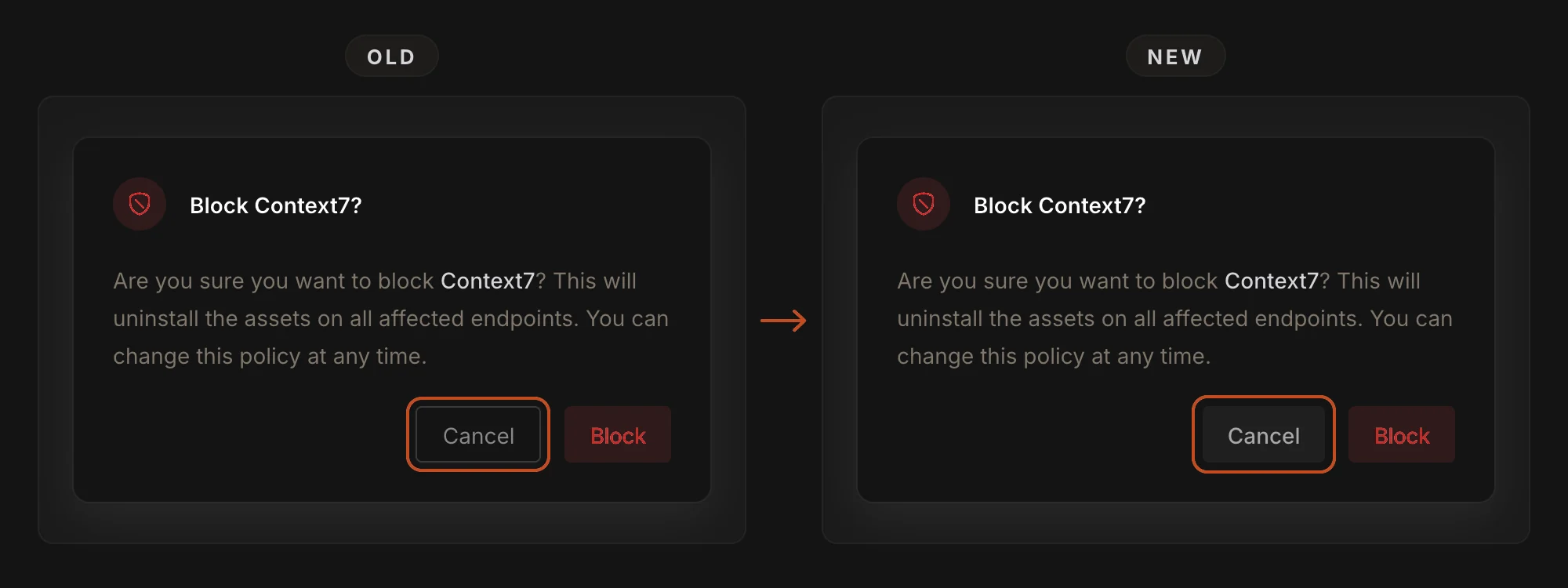
When you confirm an action such as Block, the Cancel button is now filled in grey instead of a thin outline, so both choices are equally easy to see before you commit. Other confirmation dialogs use the same grey Cancel too, such as the ones for leaving a page with unsaved changes or discarding a selection.
Updated Search Placeholders
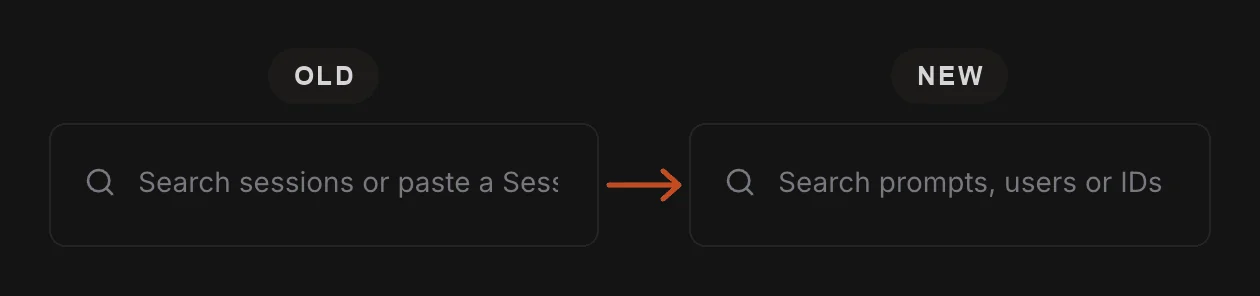
The grey hint text inside search boxes across Surface has been updated. Each one now lists what you can search by, and none are cut off any more.
For example, the Sessions search box now reads Search prompts, users or IDs, and the Endpoints search box reads Search by hostname or email.