Insights: Endpoints at Risk
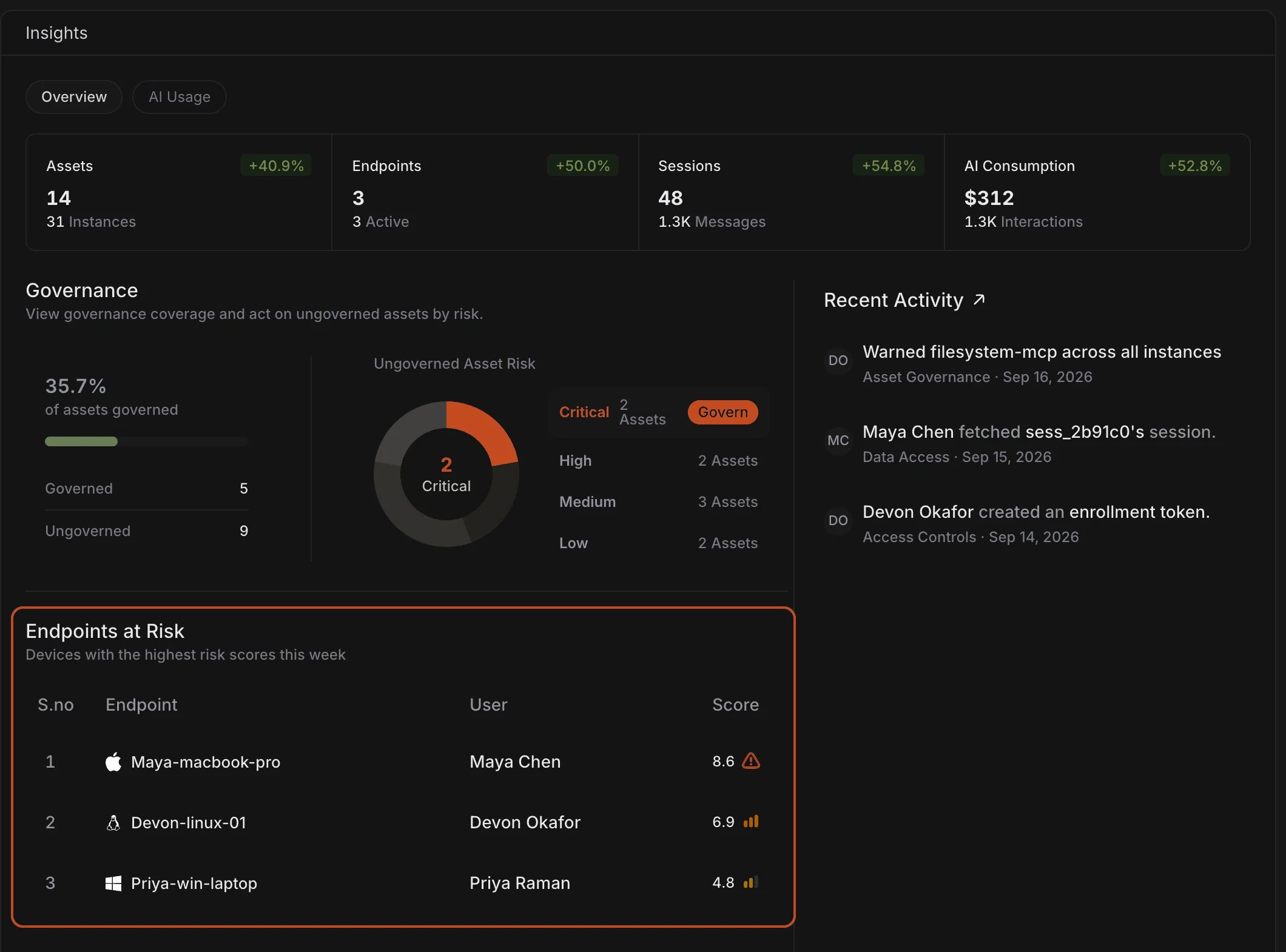
A new Endpoints at Risk table on Insights Overview lists the devices with the highest risk scores this week, as shown above. Each row shows the endpoint, who last used it, and its score.
The rest of Overview is easier to scan too. Assets, Endpoints, Sessions, and AI Consumption now sit in one row, with the governed share just below. Previously those counts were five separate cards, and the page showed Asset Types by Risk instead of this table.
An Overview for Each Endpoint
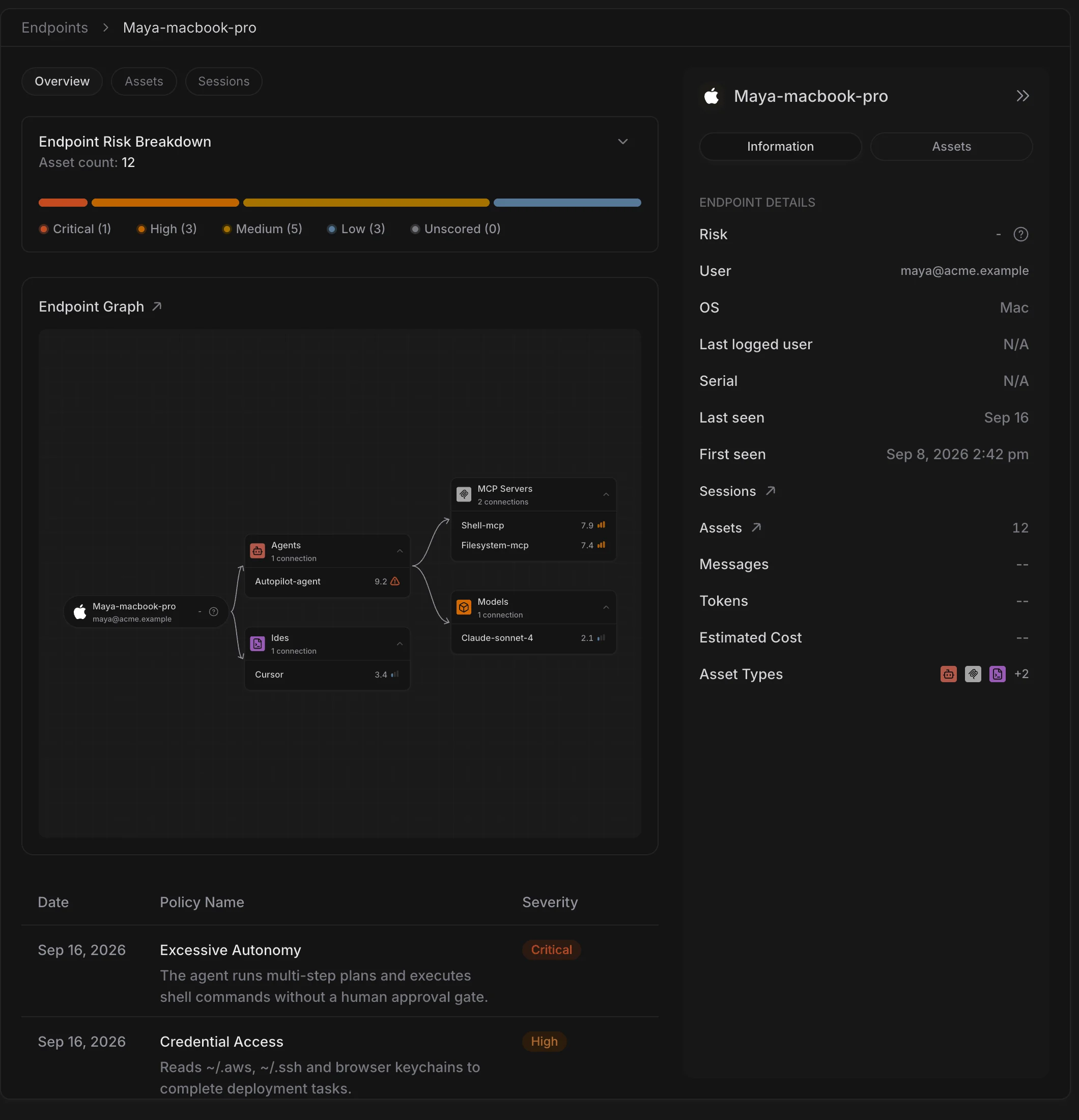
Opening an endpoint now lands on Overview. It shows how risk is spread across the assets on that device (Endpoint Risk Breakdown), a mini Endpoint Graph of those assets, and the policies that failed on it, as shown above.
Previously this tab was an Exposure card (how many assets, which types) and a Details card (OS, serial, last user). Those device facts now sit in the side panel; Overview is for risk.
List View and Graph View on Inventory
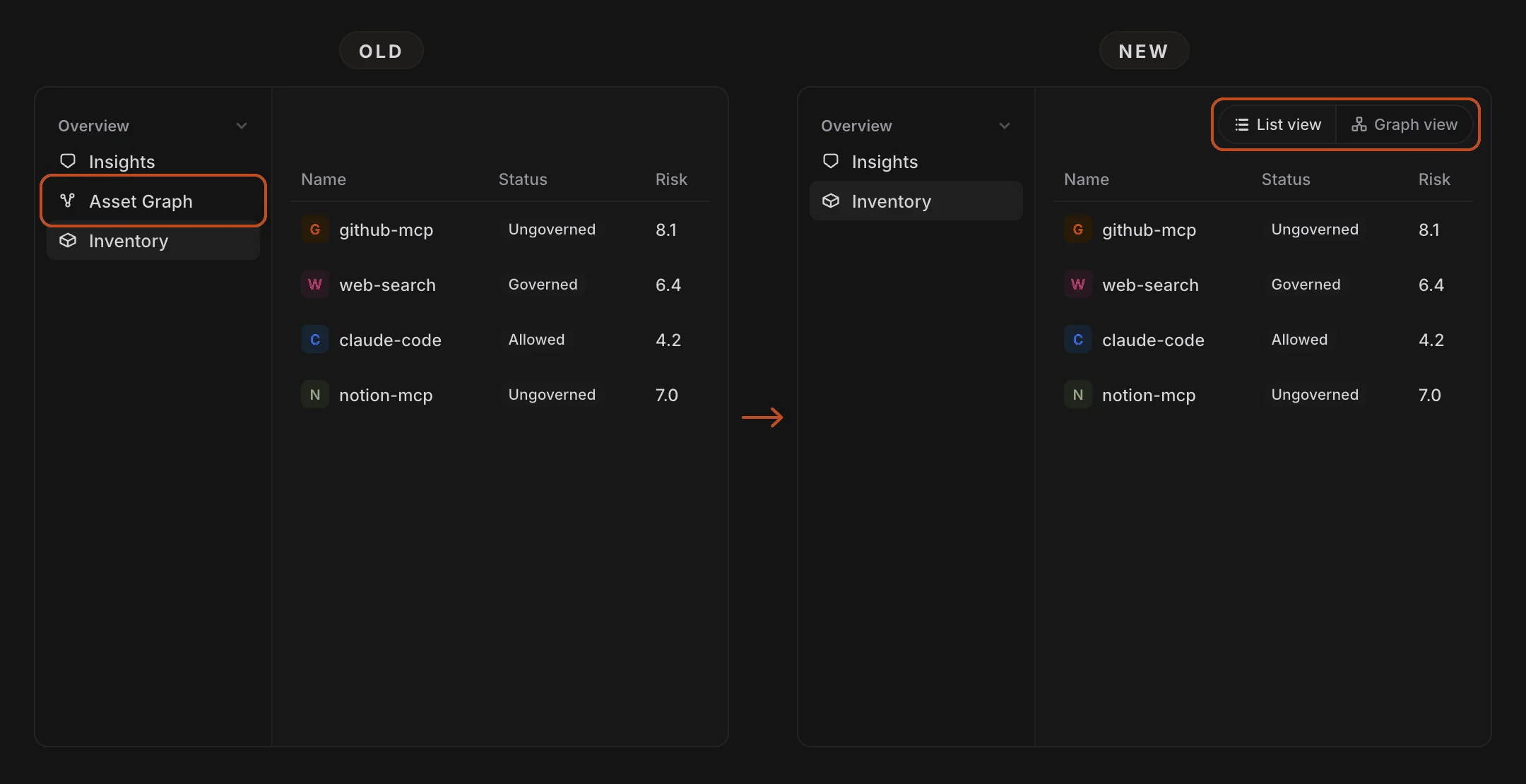
Inventory and Asset Graph are now one page. In the header you can switch between List view (the table) and Graph view (the map of how assets connect), as shown above.
Asset Graph is no longer its own row in the sidebar. Opening Inventory still lands on the list.
Type Icons on Asset Groups in Side Panels
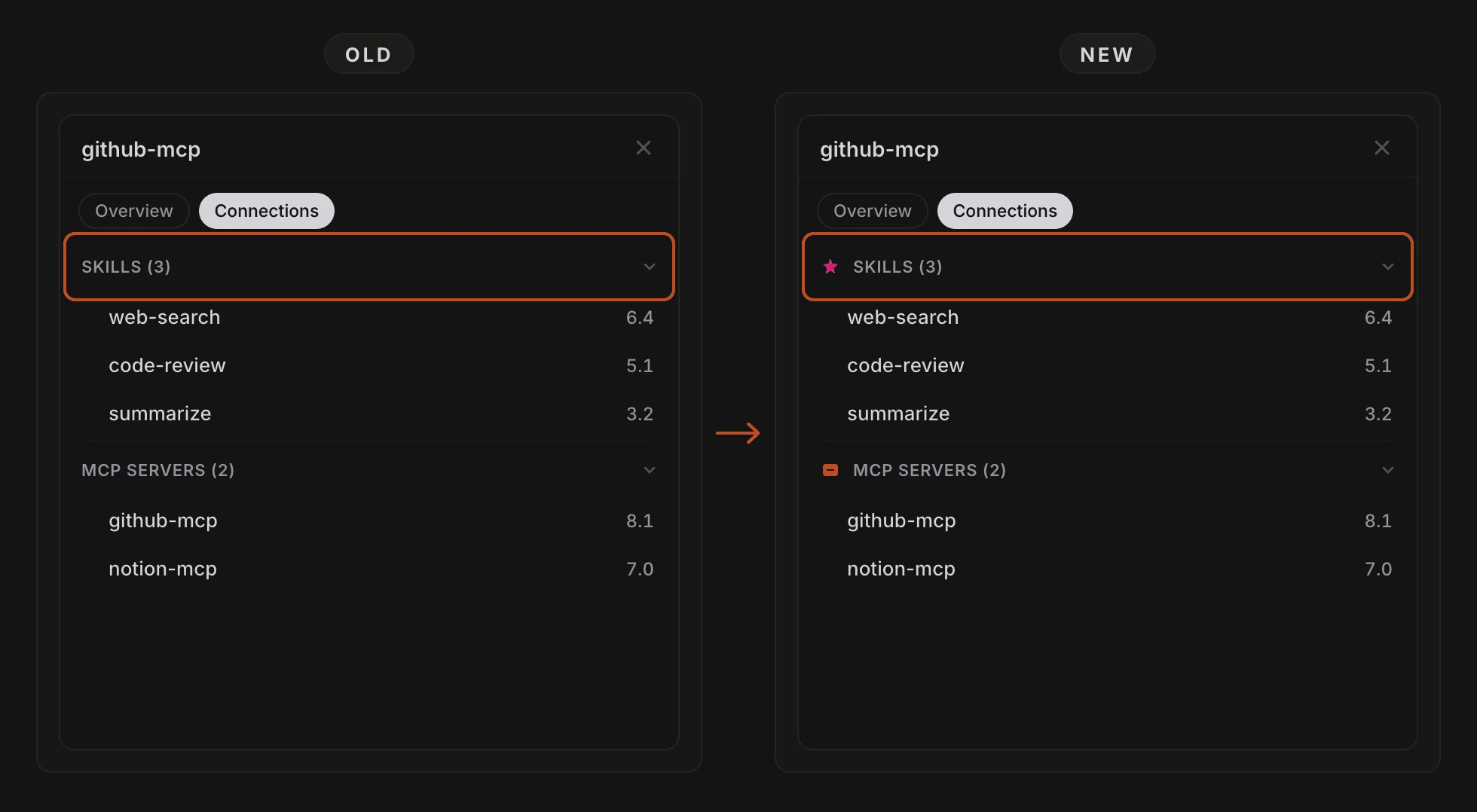
In side panels, each asset-type group heading such as SKILLS (3) now has that type’s icon next to it, as shown above. You will see this on an asset’s Connections tab and on an endpoint’s Assets tab. The rows themselves are unchanged.
Previously the headings were text only, so you had to read the label to tell skills from MCP servers.
Policy Tags Coloured by Severity
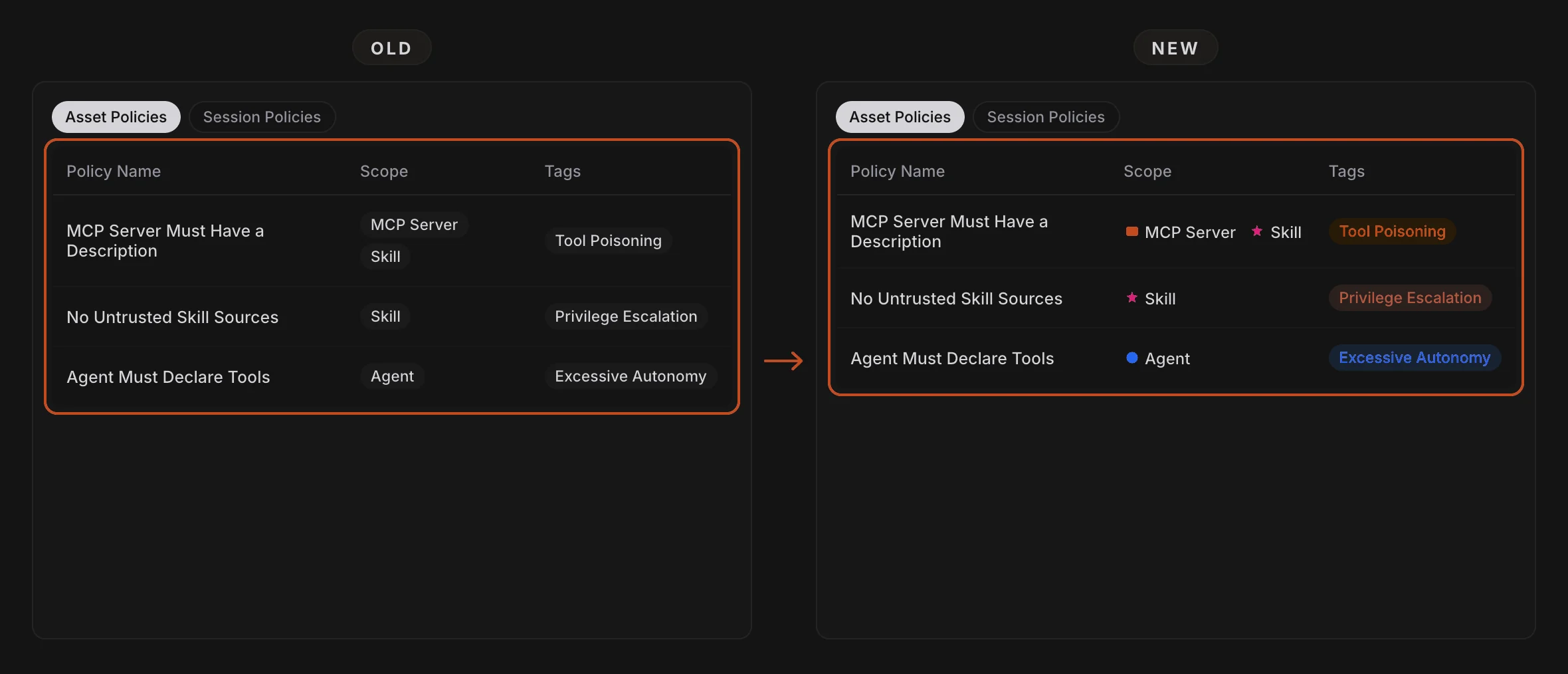
On Asset Policies, each row’s tags now use the same colours as that policy’s severity — Critical, High, Medium, or Low — as shown above. Tags on a High policy are orange; tags on a Critical policy are red.
The Scope column now shows each asset type as an icon and a name, instead of a grey chip. Session Policies still has no Scope column, because every row would read the same.
A Product Tour You Can Open Without Signing In
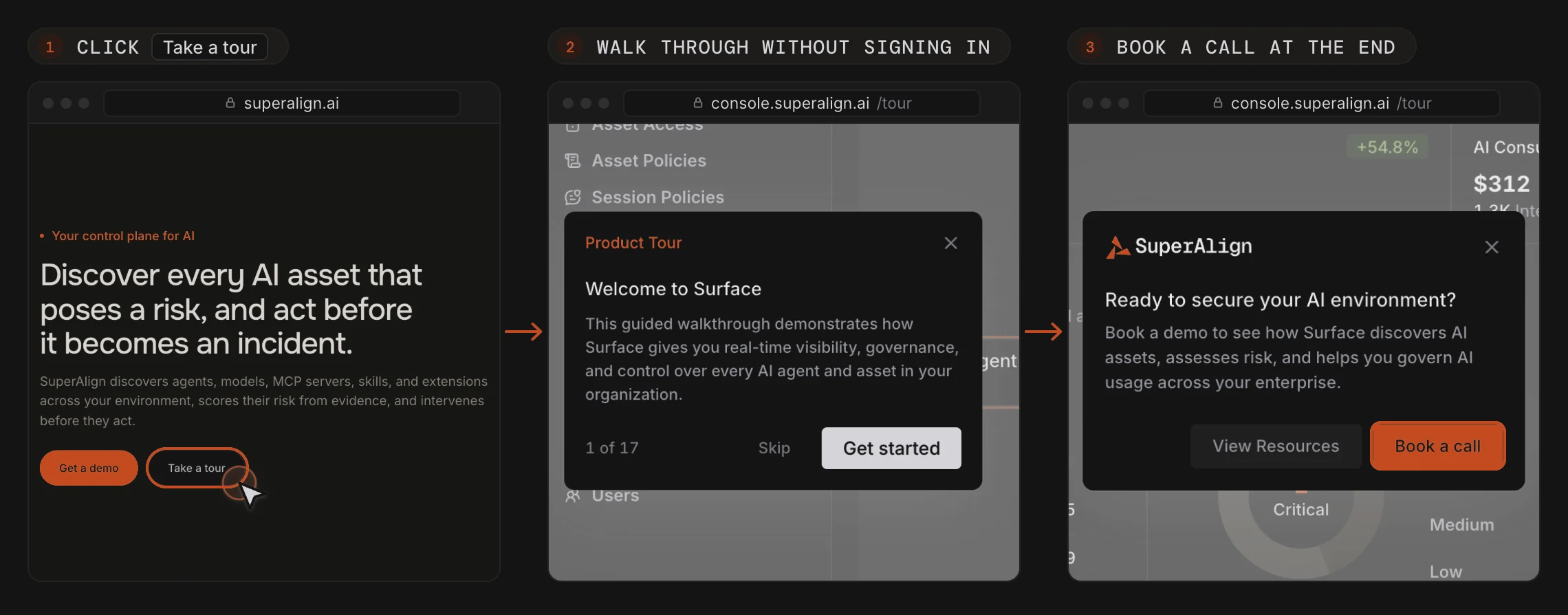
You can walk through Surface without an account. On the SuperAlign homepage, Take a tour (and Tour in the navigation) opens console.superalign.ai/tour. It starts the guided tour on a sample organization, as shown above.
The last step of the tour offers Book a call, so you can set up a demo with the SuperAlign team when you’re ready.
Previously the tour only ran after you signed in. The signed-in tour is unchanged for people who already have access.